How to set up Double Authentication

The Double Authentication function offers users the possibility to extend their security at the time of login with an additional, randomly generated code. With a few simple steps, users can configure the second level of security when logging into the platform via phone number or email.
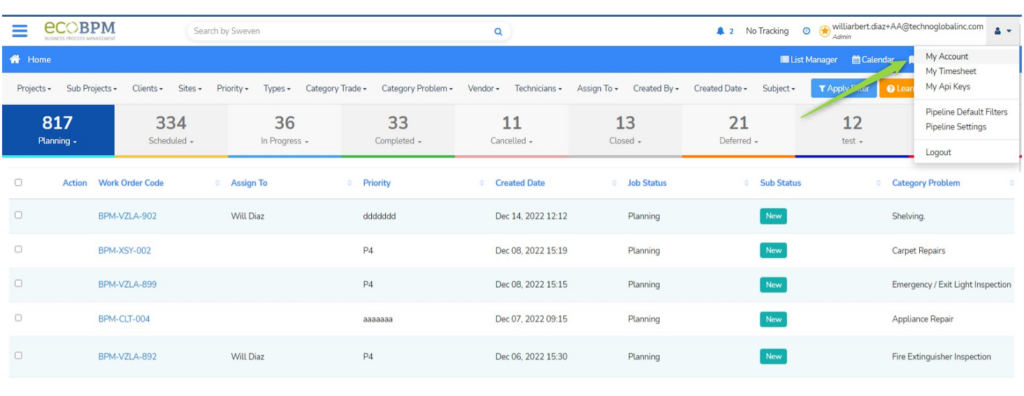
This option is available from the «My Account» module in the top side menu.
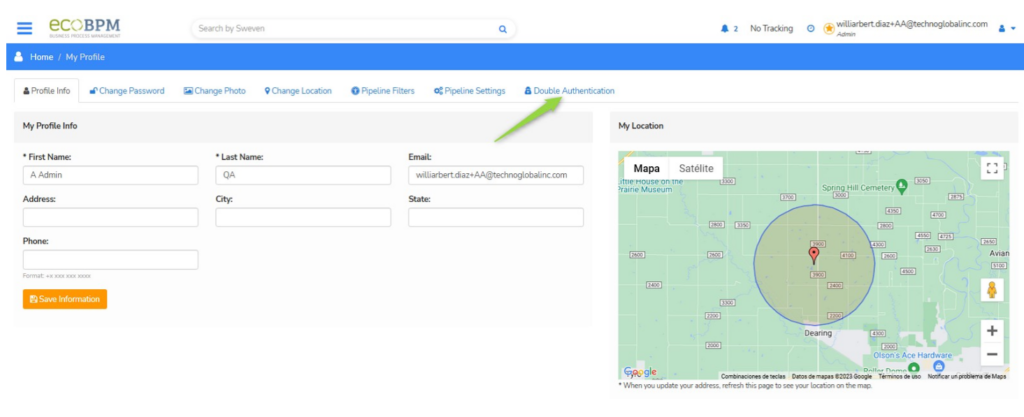
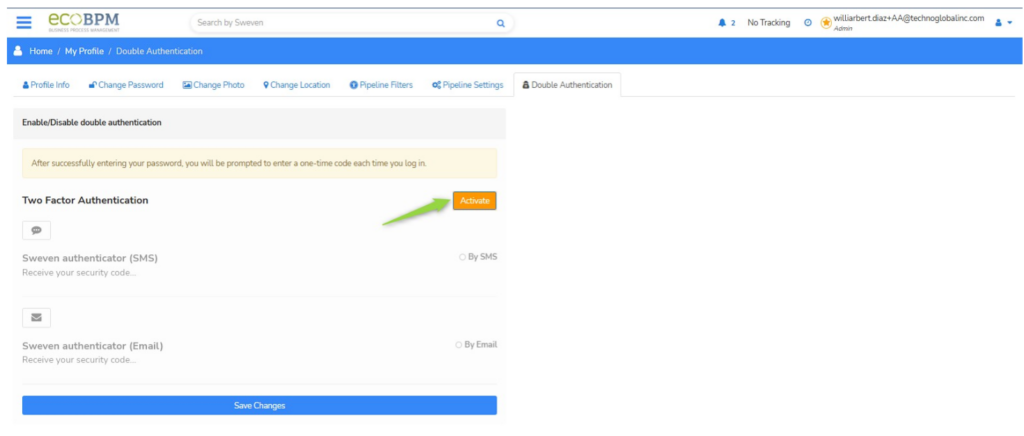
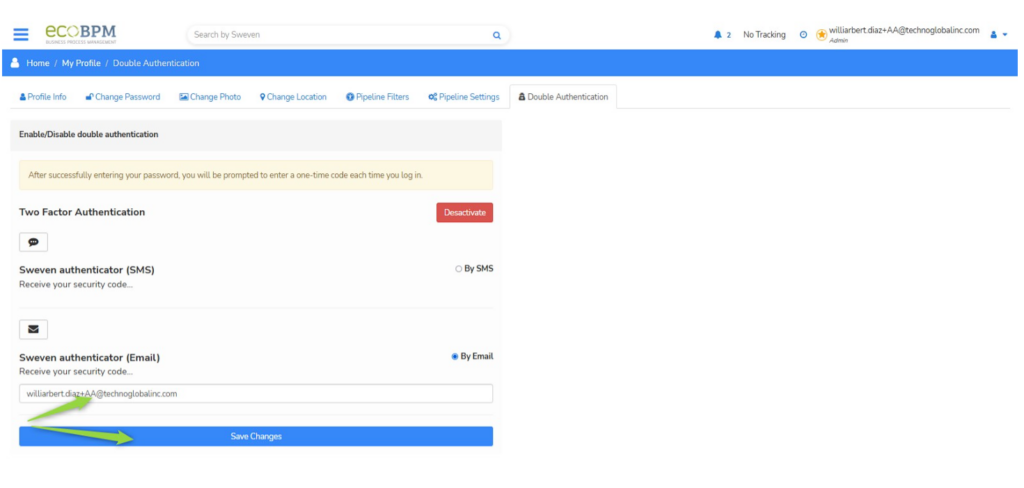
To start using the double authentication function, simply select the «Double Authentication» tab from the «My Account» module.
Then, select the «Activate» button to confirm the action. Finally, select the additional authentication method to be activated, either via SMS or e-mail.
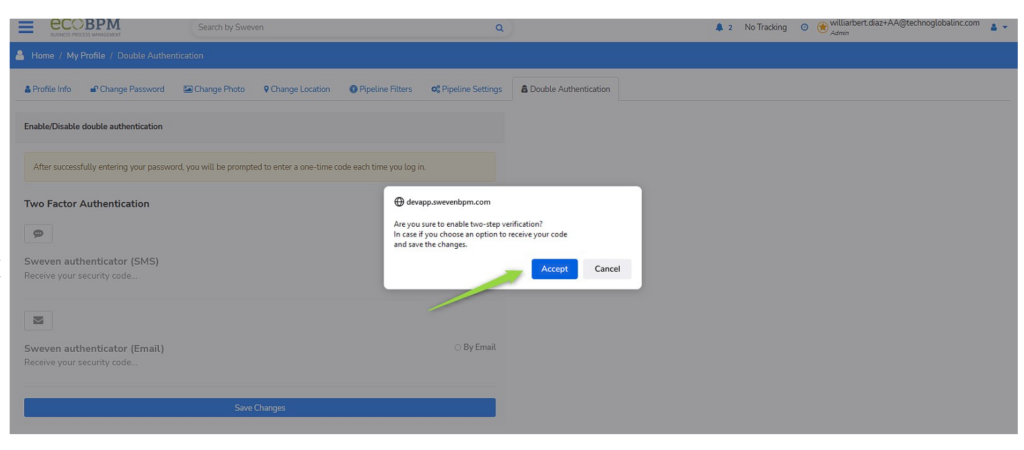
Now click «Accept»
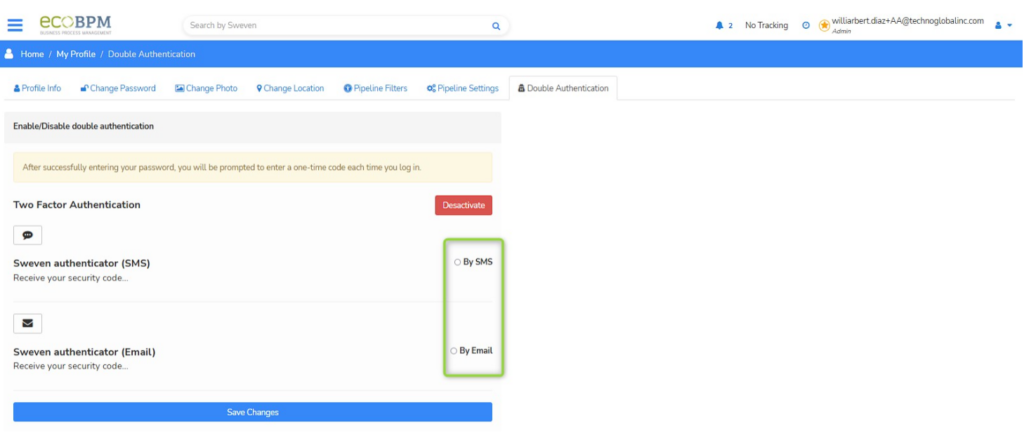
To receive the code by text message, press the «By SMS» button or select the «By Email» button to receive the code by e-mail.
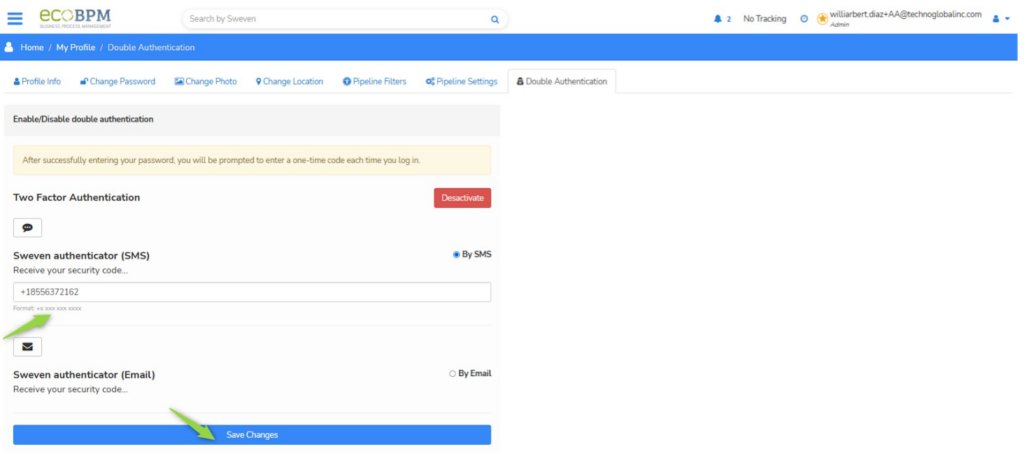
Finally, enter the phone number or e-mail address to which you want to receive the code and select the «Save Changes» button.
When trying to log in to the application again, the system will request the authentication code sent to the phone number or e-mail address added in the configuration.
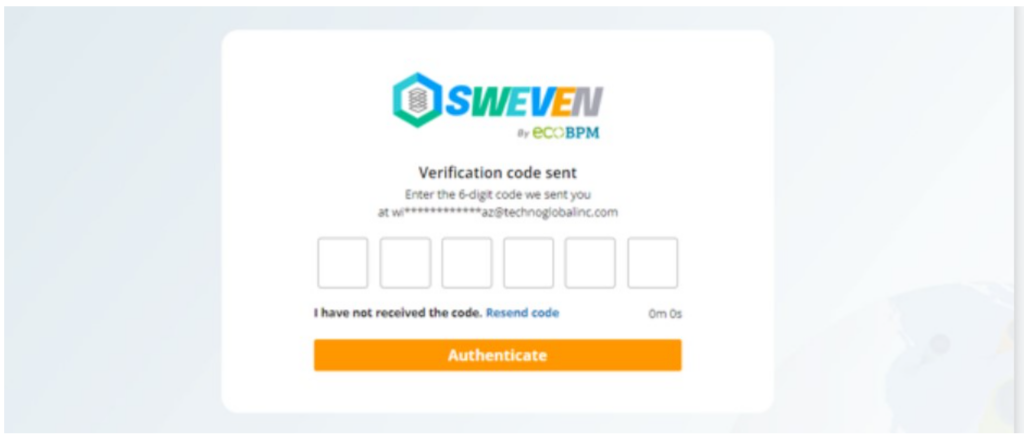
The user must enter the number received by text message or by e-mail in order to complete the login.