
Client Users – Client Portal 101

You can provide Clients with a Sweven account for the Client Portal. In this dedicated module, they can Create Work Orders in the system, saving you time in data input and improving your maintenance workflow, and have access to a Client Pipeline, which shows the status of all the Work Orders for this Client.
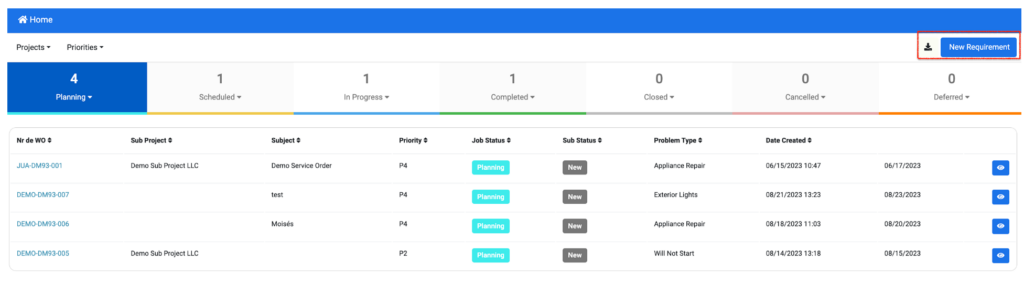
While is not required for Clients to have a Sweven account, it helps bring visibility to the work performed and allows Clients to upload documents as notes for reference, billing, or as an update. They can also be automatically notified of work being completed once you change the Status in Sweven, keeping all parties on the known in a second.
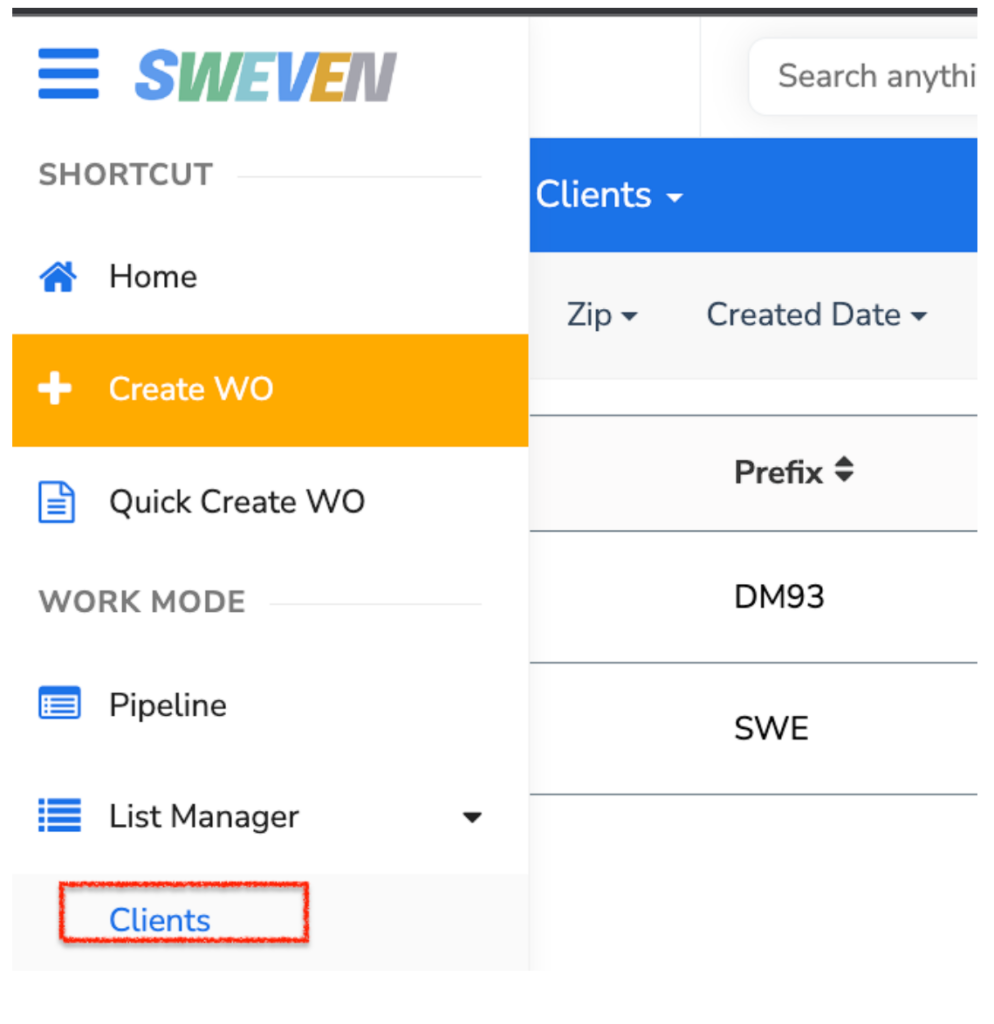
On the left side of the screen, click on the hamburger menu, and then scroll down to List Manager, then click on Clients.
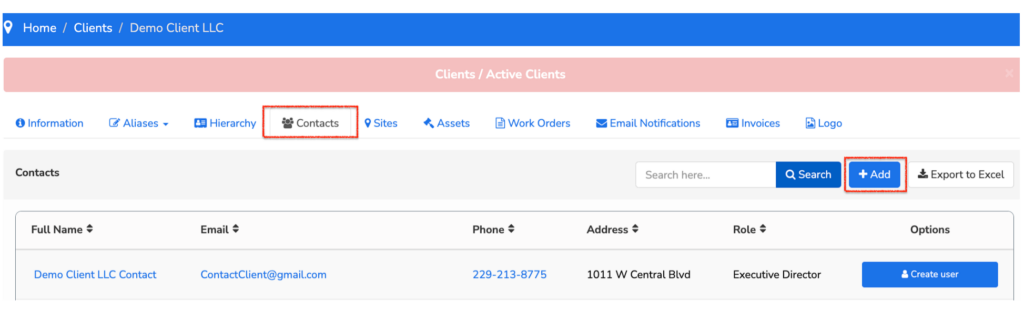
Select a Client from the list and then click on «Contacts», then «+Add»
Here, you can fill in all your Client’s contacts and assign a Role for notifications by hierarchy. Once this information is filled out, let’s click on «Create User«.
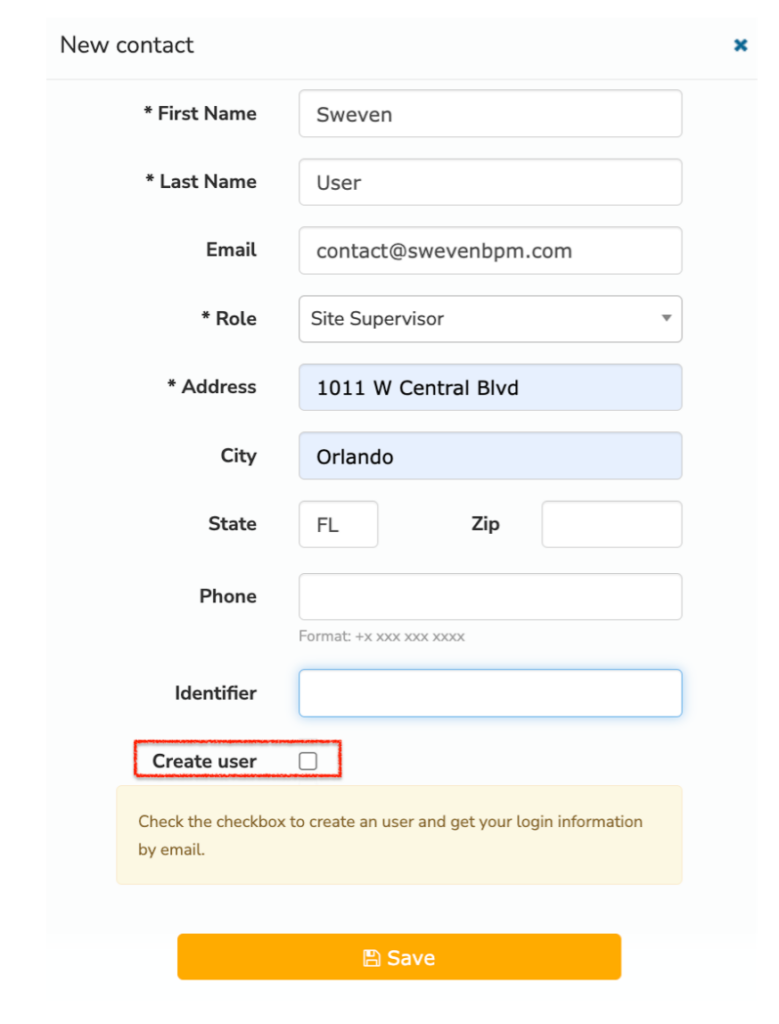
Click on «Save» to save this contact. The new user will be notified of the new account via the email provided in this formulary.
If a Contact has already been entered, but no account was created, their entry on the list will display the option to «Create user» which will notify this user and prompt them to choose a new password.
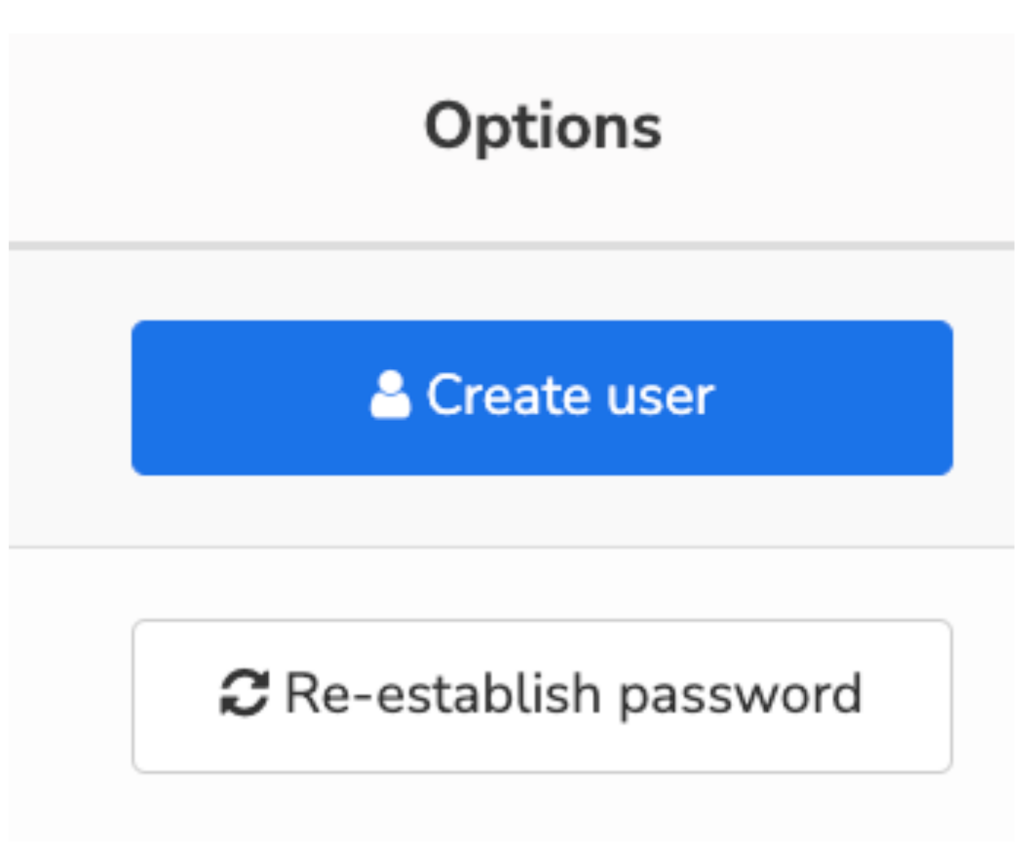
If an existing User with a Client Portal account is having login issues, you can re-establish their password with the «Re-establish password» option. They will be notified and be provided a link to choose a new password.