Verified Solution
Playbooks
Change default filters

868 Views
0 Replies
The default filters affect how your Pipeline looks when you log in or go to the Home page.
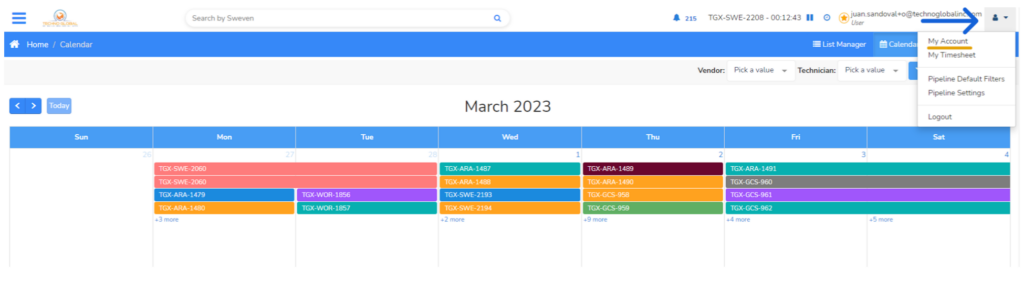
First, log in to your Sweven account. Once you’re logged in, click on the user icon located on the top right corner of the page. From the drop-down menu, select «My Profile».
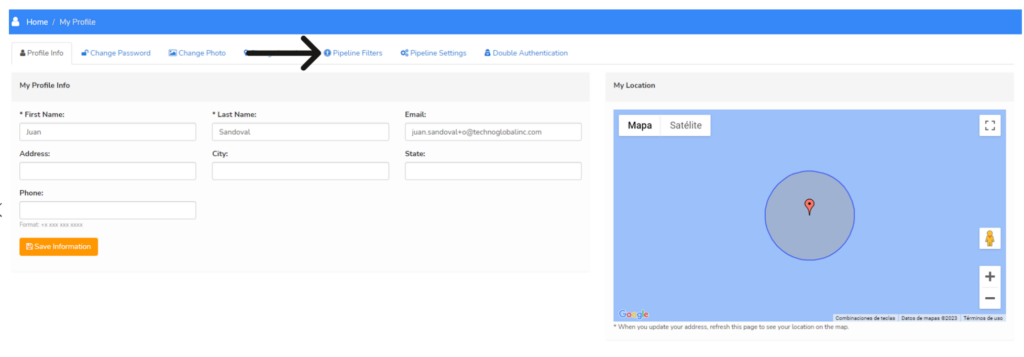
On your profile page, you’ll see a section called «Pipeline filters». Click on this section to proceed.
Here, you can change the default filters that are applied to your pipeline.
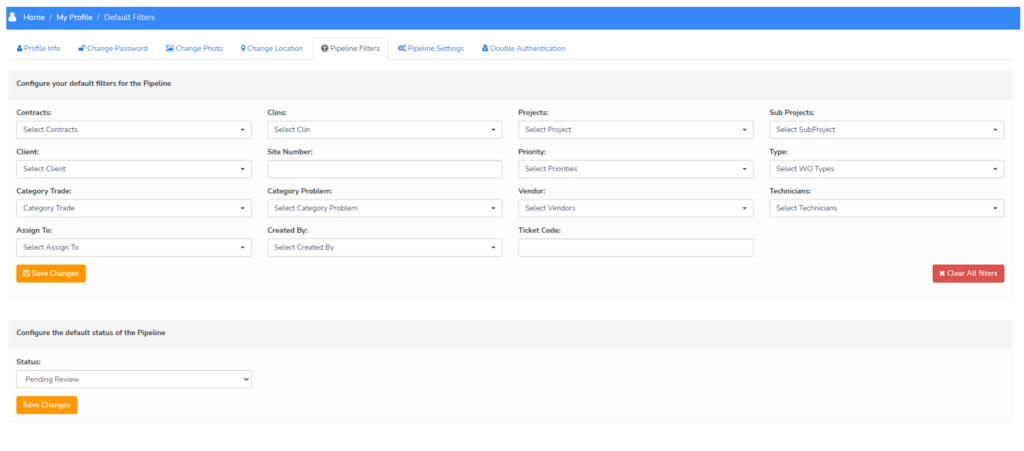
Once you’ve made the changes you want, click on the «Save changes» button to save your new default filters.