How to onboard a New Vendor?

In order to provide a fast, direct way to provide external Vendors with tasks, Vendors can be granted access to a dedicated Vendor Portal which will display the tasks assigned, their status, and description. Information on these tasks can be then expanded on by the Vendor, uploading pictures and documents from the Site and being able to leave text Notes with updates and questions.
In order to create a Sweven account for a New Vendor:
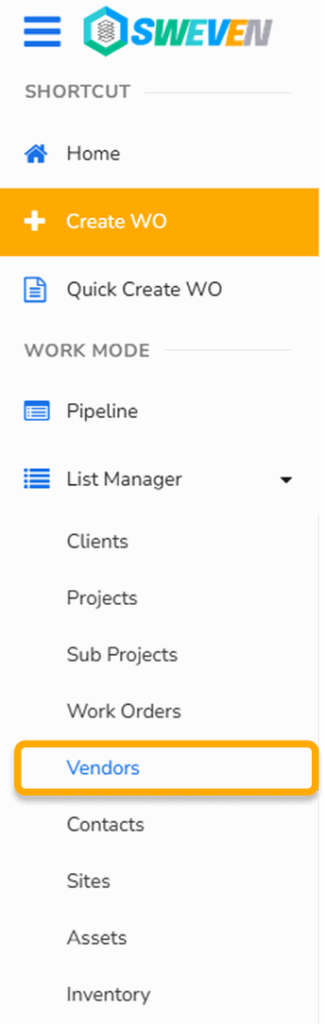
Click on the hamburger menu on the left side of the screen and scroll down and click «Vendors»
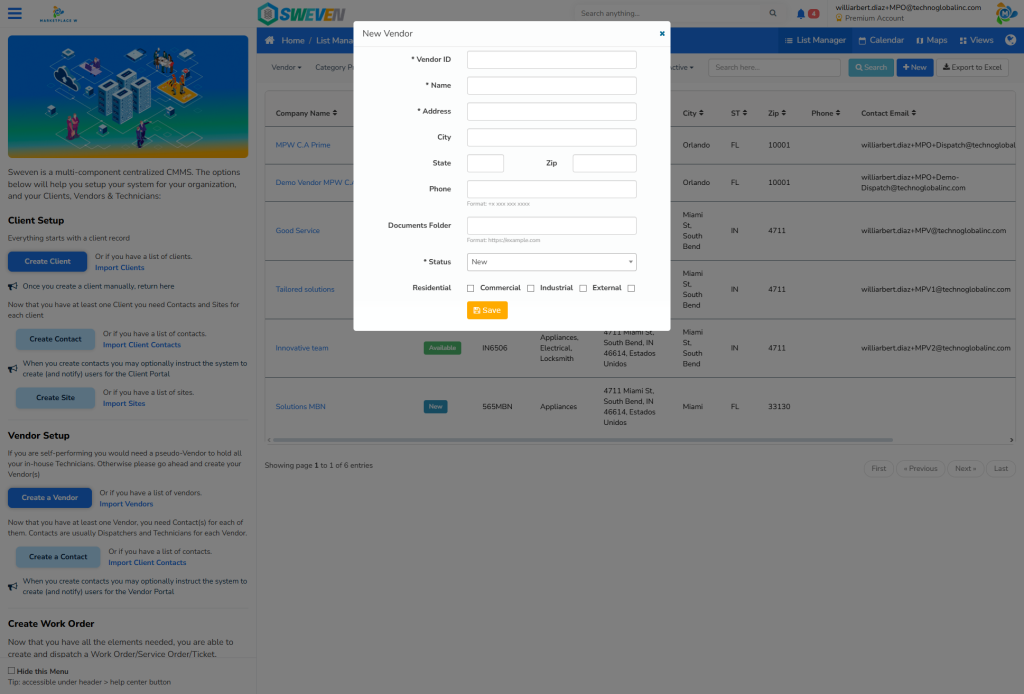
Then, click on «New» to add your new Vendor.

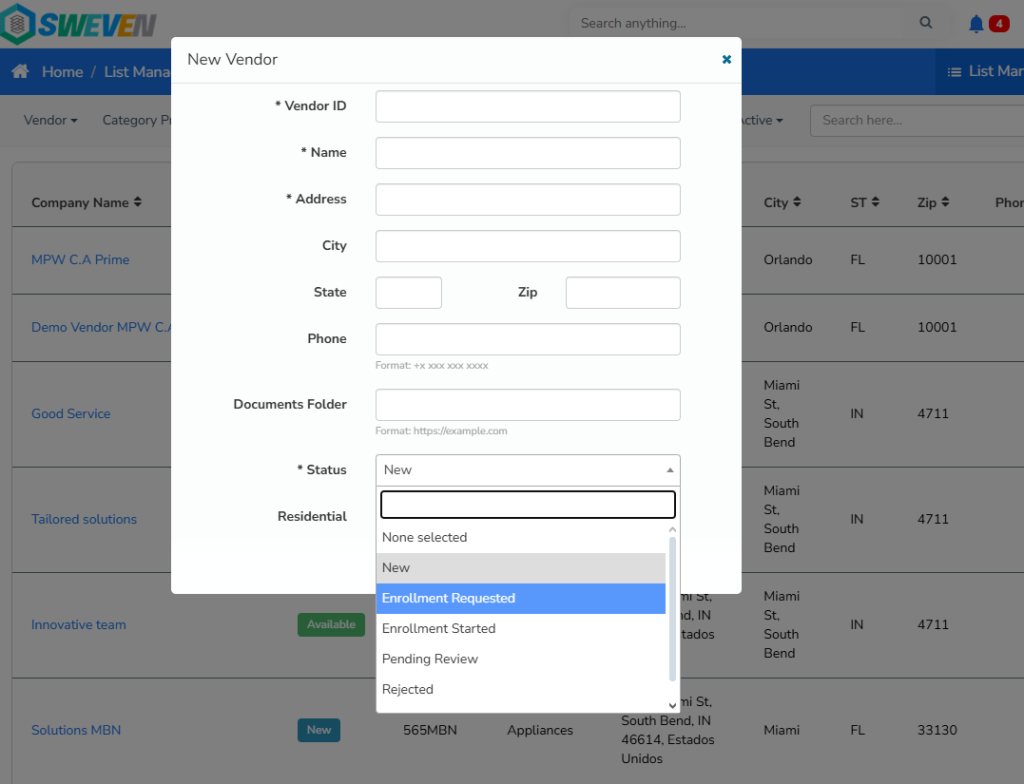
Fill in the required fields.
Please note: If the Vendor Status you set for this Vendor is other than «Available» this Vendor will not be able to receive and process tasks in Sweven.
You can, for instance, enter information on a potential Vendor and then set the Status to «Pending Review» until you are sure this Vendor is able to provide service.
You can update this Status in List Manager/Vendors, then select the Vendor status you want to update.