
How to Add Notes to a Work Order

Keeping clear, timely notes on your work orders helps everyone stay aligned. Here’s how you can add your own notes in SWEVEN:
Open the Work Order
Navigate to the Work Order you want to update. You’ll see its header (e.g., SWM-67970-001), status, deadline, and description.
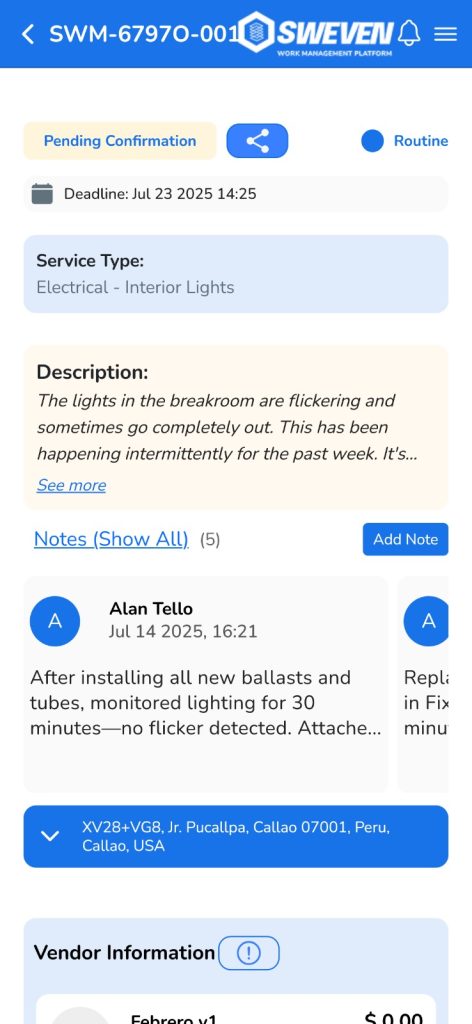
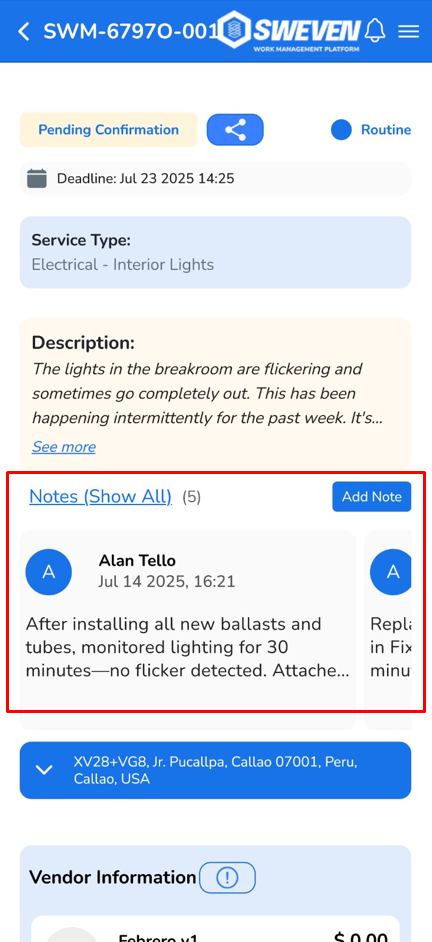
Locate the Notes Section
Scroll down just below the Description. You’ll find a panel labeled Notes (Show All) along with the number of existing notes.
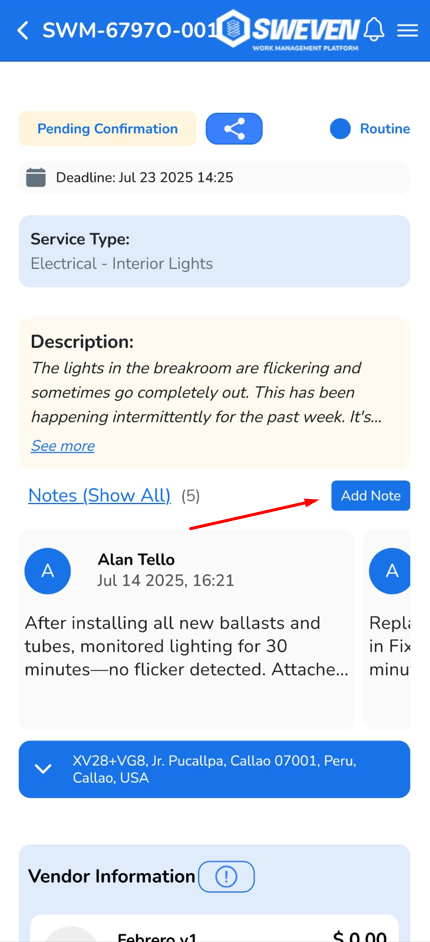
Click Add Note
On the right side of the Notes panel, click the blue Add Note button.
Enter Your Note in the Modal
A modal window will appear:
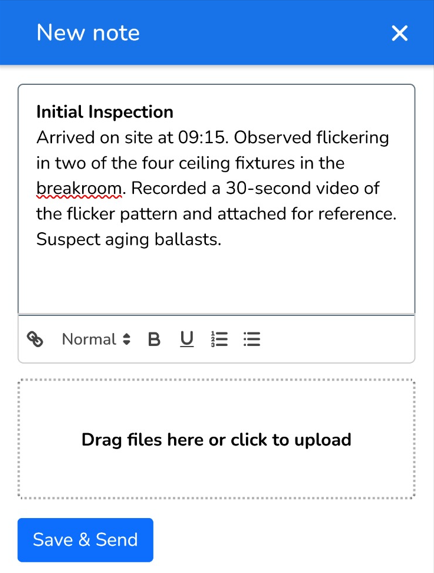
Type your note into the text area marked “Take a note….”
(Optional) Attach files by dragging them into the “Drag files here or click to upload” area.
Click Save & Send to publish your note to the work order.
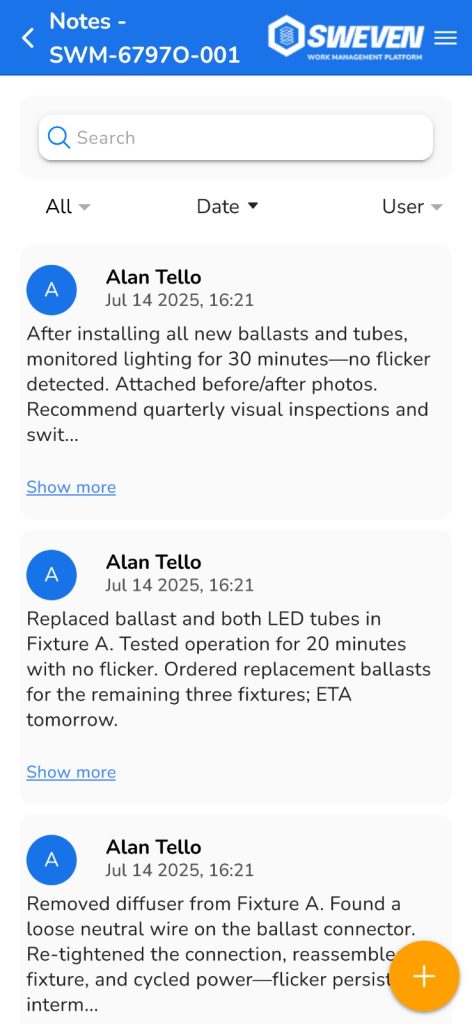
View Your Note in the List
Once saved, your note appears at the top of the Notes list, including any attachments and your timestamp.
Tips & Best Practices
Be concise: Summarize key updates or questions.
Attach screenshots/documents when extra context is needed.
Use mentions (@username) if you need to draw another user’s attention.
That’s it! You’ve successfully added a note to your work order. If you have any questions or run into issues, feel free to reply below or visit our Community Support Forum.