Verified Solution
Playbooks
Configuring action buttons and steps for vendors and mobile on Sweven

123 Views
0 Replies
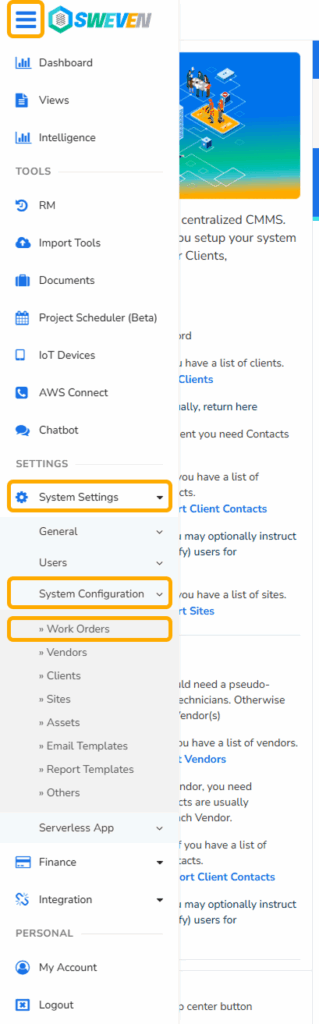
Log in to your Owner account, click on the menu at the top left corner.
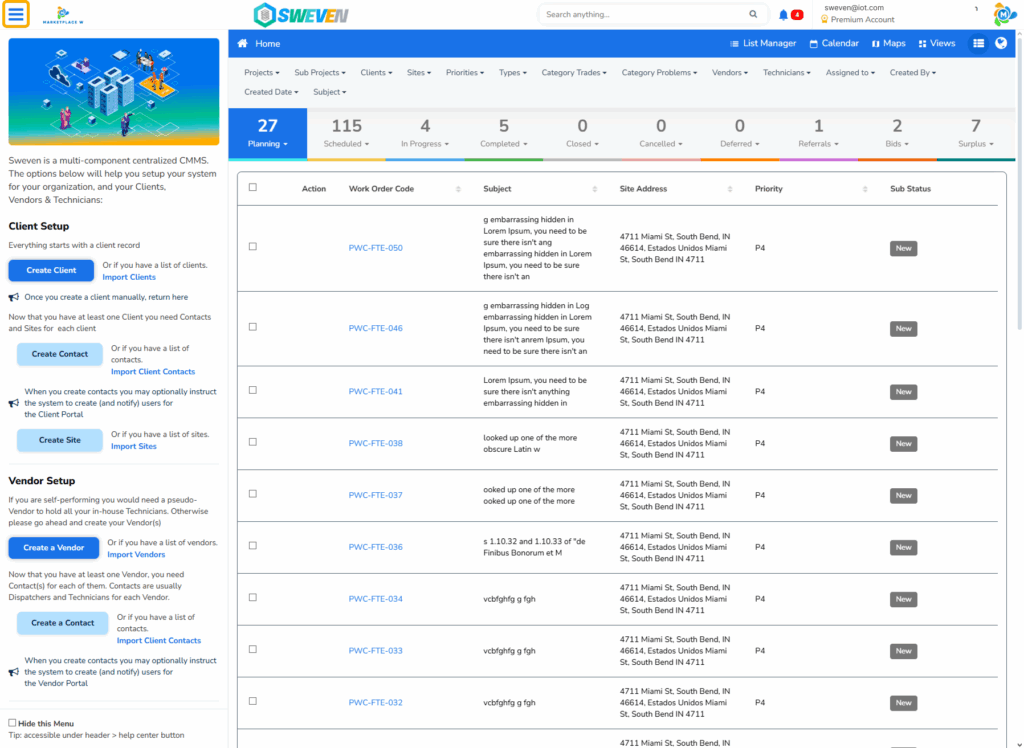
Scroll down and click System Settings>System Configuration>Work Orders.
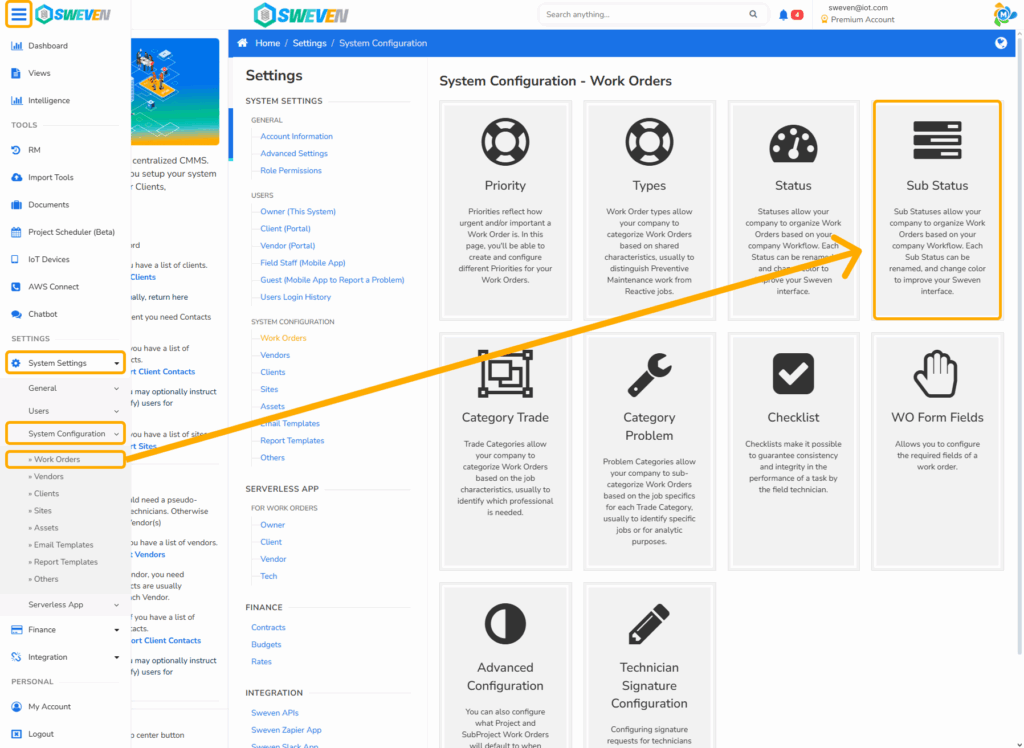
Once in the Work Order page, click on the Sub Status section.
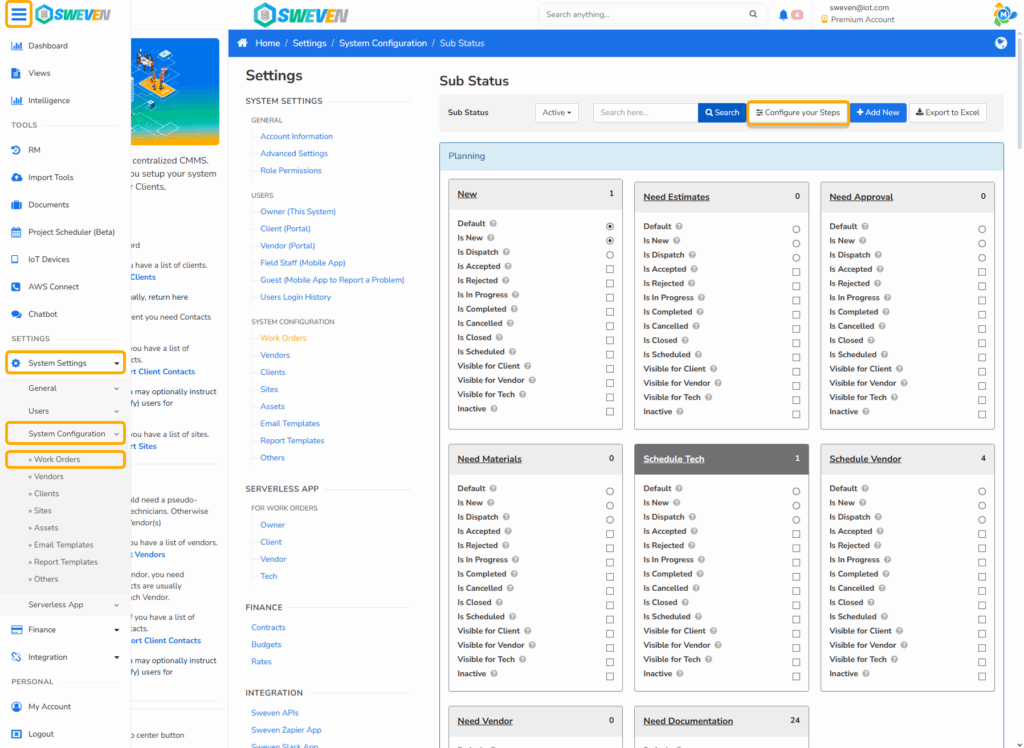
Once on the Sub Status page, you will be able to configure which Work Order with a specific sub status will be visible for vendors or techs, as well as other configurations related to the events that happen on the Work Orders
In order to configure the steps, click on Configure your Steps
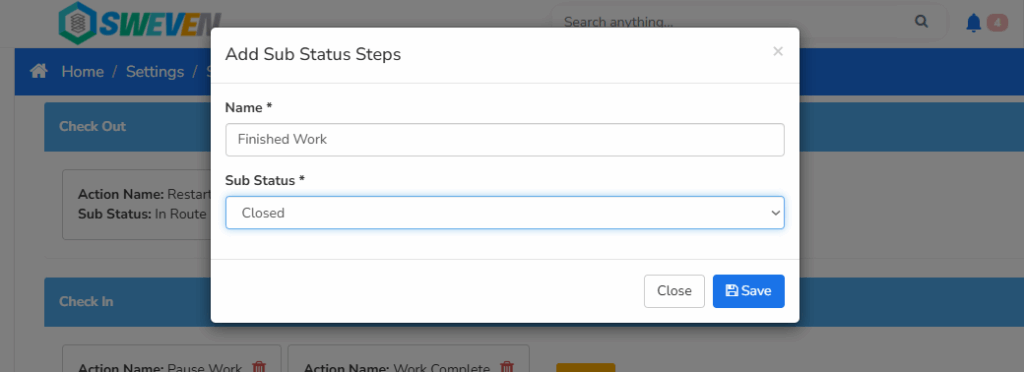
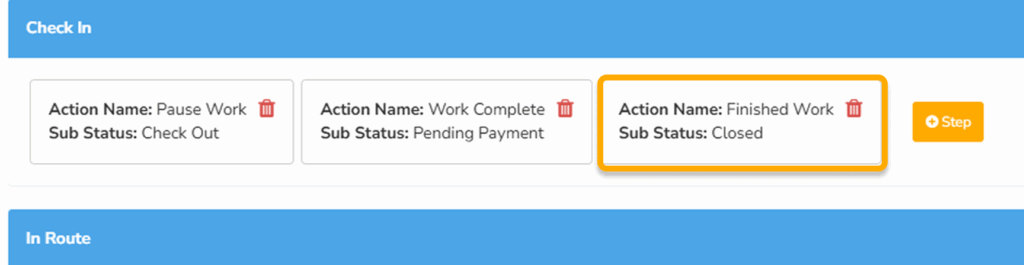
You can now configure the steps.
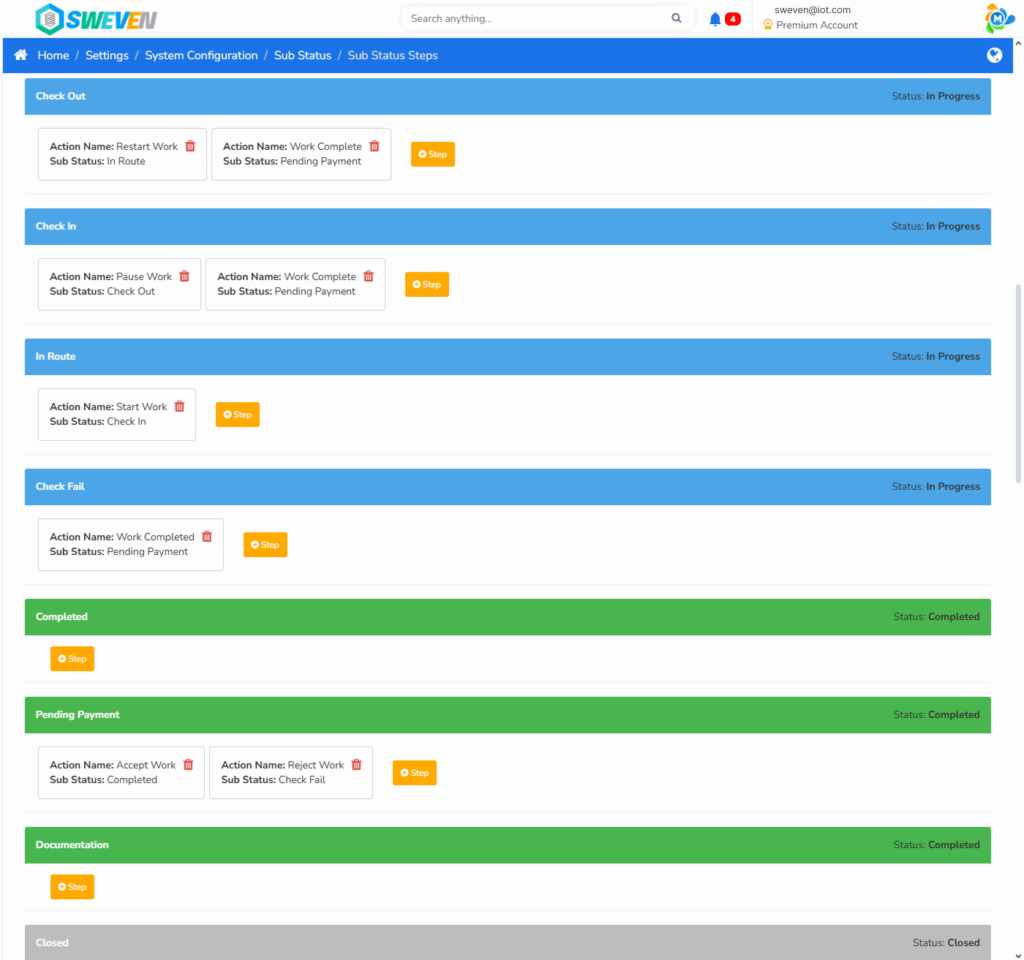
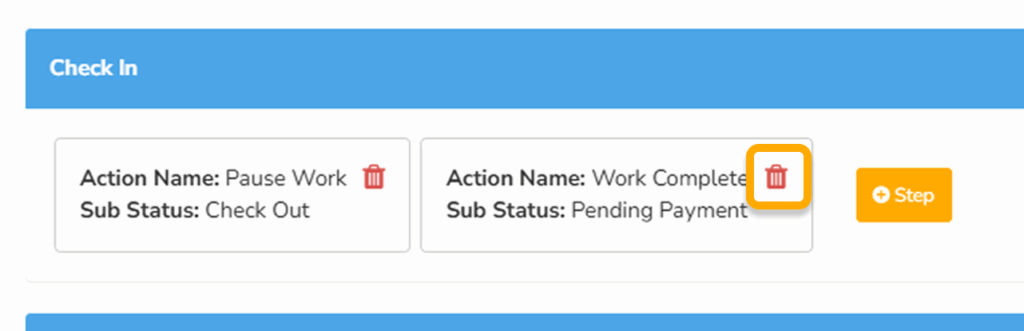
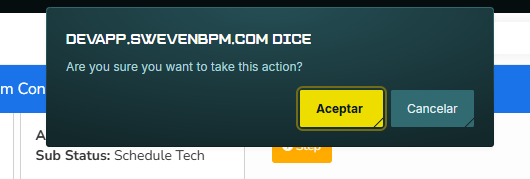
To edit or change the sub status you must either create a new action name and add the corresponding sub status or delete the step and create a new one with the corresponding name and sub status.