
How to see the Work Orders assigned to me as a technician?

A Technician or Vendor can be assigned Work Orders using Sweven. This helps keep an orderly work pipeline for all involved, notify them of the progress of the task, and upload pictures and notes without the need for multiple means of communication and coordination.
These orders can be assigned by the main Sweven Owner users (aggregators using Sweven) and Vendor users with a Sweven Vendor Portal account to Technicians with a Sweven mobile account created by an Owner user.
Please refer to this post on Work Order assignment.
Work Orders in the Sweven Mobile app.
Once a user has been created and the Technician has set a password, download and open the Sweven app on your phone. Enter your credentials and the newly created password.

This is your Technician pipeline, where all Work Orders assigned to you as a Technician and in the Scheduled – Pending Confirmation or In Progress will be displayed.
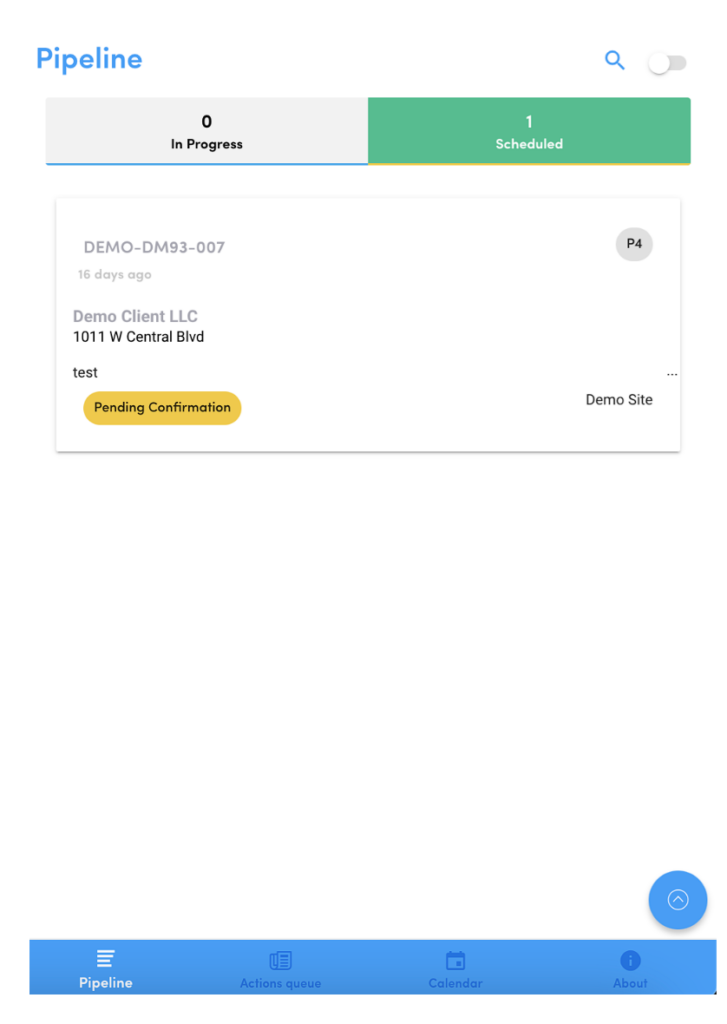
Keep in mind that this will show only orders that are:
- marked as Scheduled – Pending Confirmation or In Progress in Sweven,
- assigned to a Vendor you are registered with and
- assigned to your Technician user in Sweven.