Assigning work orders to Technicians using the Sweven App

Creating Mobile Users – Technicians
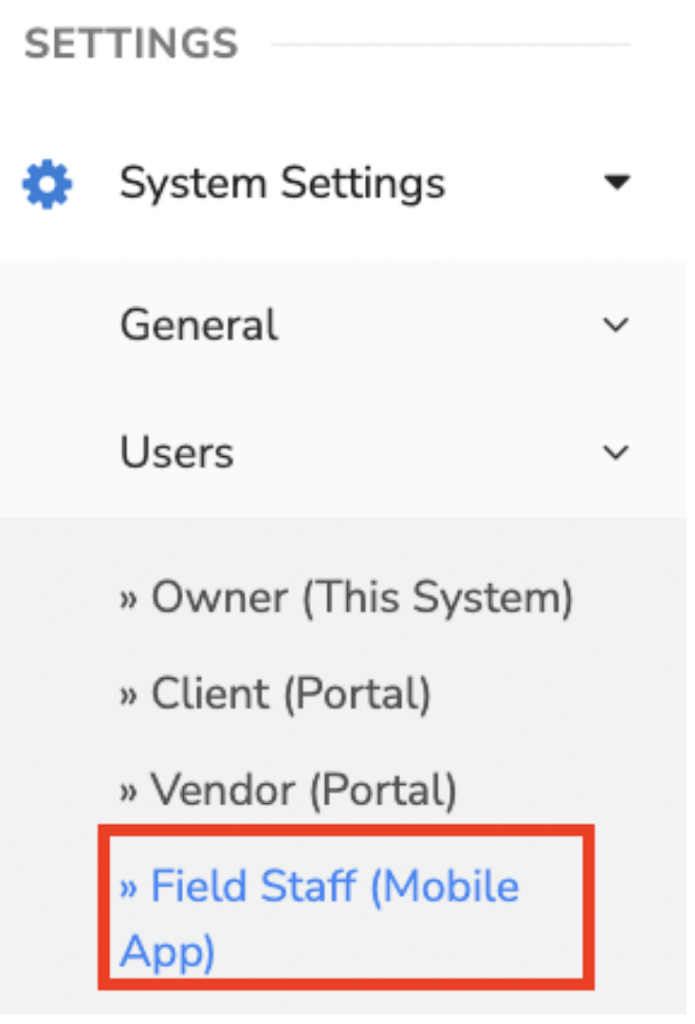
In order to assign work orders to Technicians, you need to create a user for login to the EcoBPM app. You can do so by clicking on the sidebar in Settings/Field Staff (Mobile App)
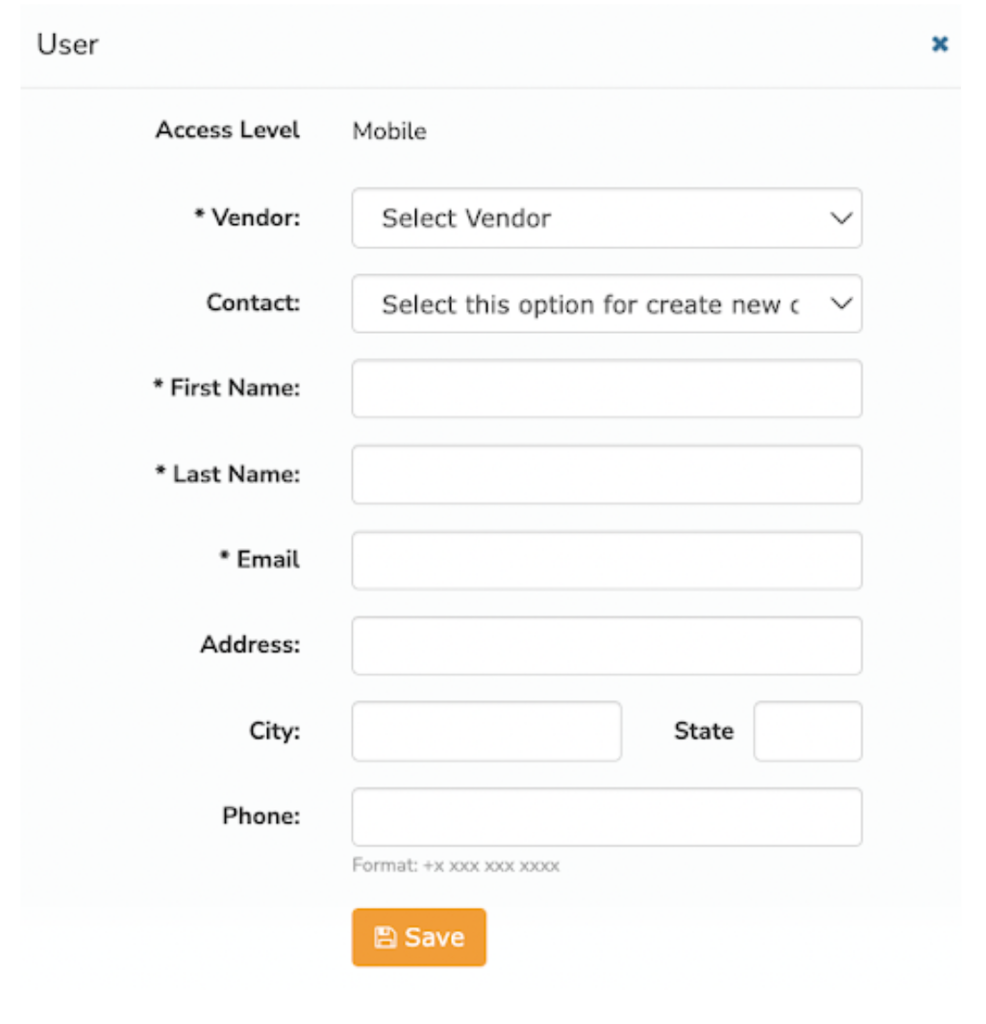
Then, click on the «+ New» button to enter the user’s data. Select the Vendor this Technician will be assigned to and then the Vendor’s Contact. Fill all the required fields and input the Technician’s email, which will be his User to access EcoBPM and point of email contact.
Once created, an email will be sent to the Technician, so they can now create a Password for the mobile app.

Technician Set up
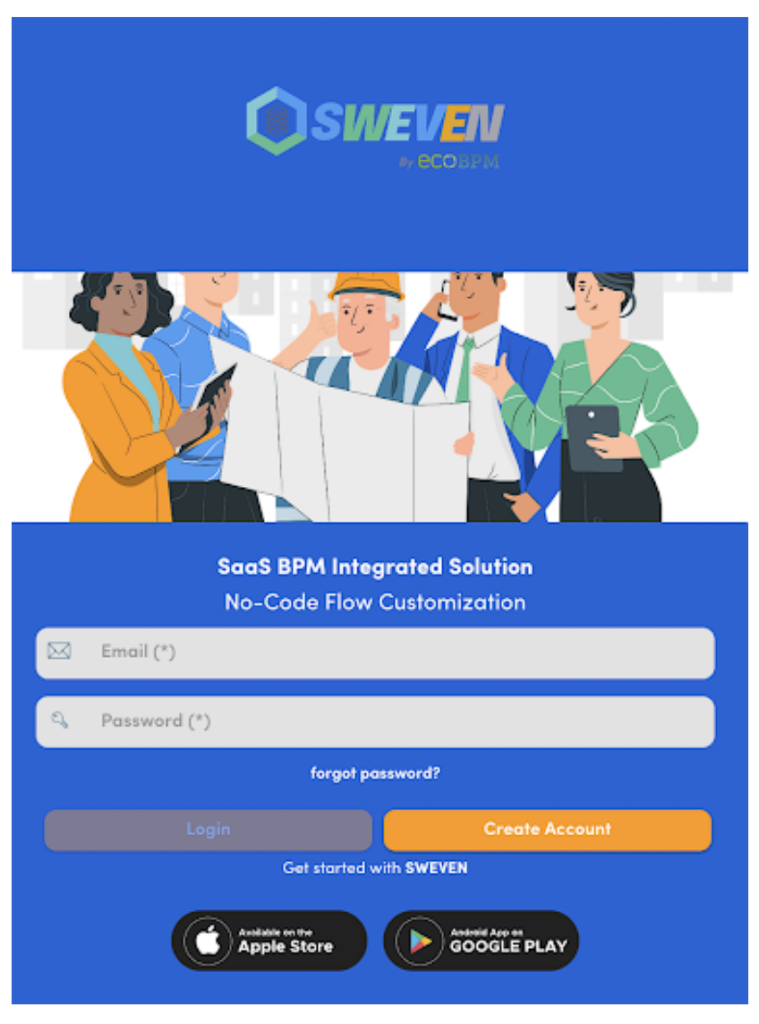
The technician will be able to access the mobile platform by downloading the Sweven by ECOBPM app in the Apple or Google Play Stores.
Update the password as per the email received and you’ll be able to login into your account.
Assigning Work Orders to Tecnhicians.
Back in the Owner platform, access the Work Order you want to assign and scroll down to the “Find Vendor” button. You can find external Vendors to assign the Work Order to or if you are configured as a self performing vendor, you can click on “Assign Vendor Self”.

The Vendor field will be populated automatically. Select and confirm the Dispatcher and the Technician, who will be the user we configured in previous steps.
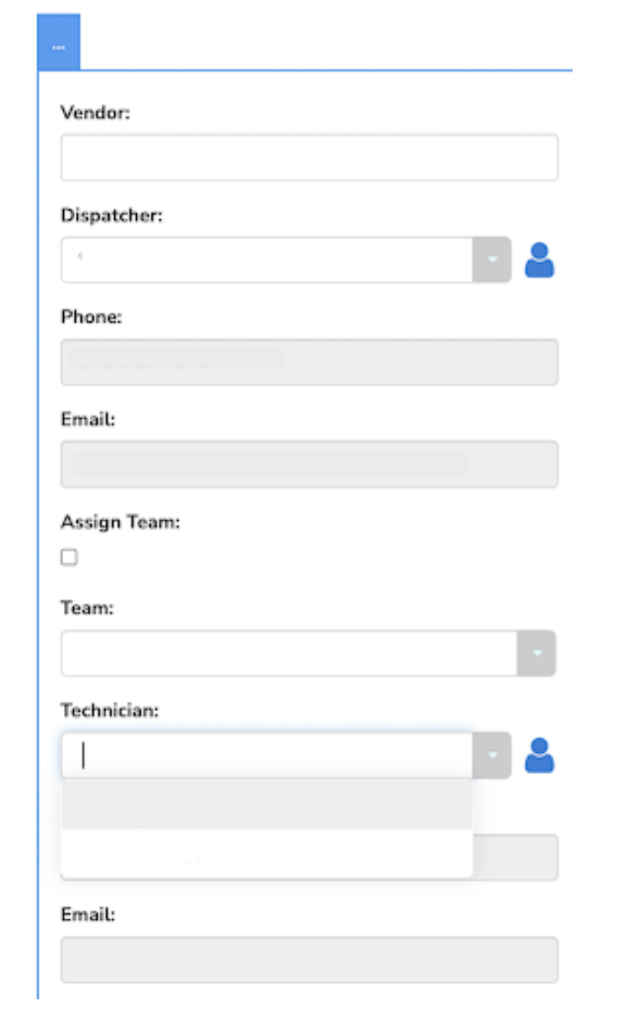
Finally, change the Work Order’s status to “Scheduled” and the Substatus to “Pending Confirmation” so it gets dispatched to the assigned Technician.
This Status and Substatus combination can be configured from your account’s settings in Settings/System Configuration/Sub Status.
Final Steps – Technician
Now, that the order has been assigned to the Technician, he will be able to see it in his Pipeline on mobile, along with all Scheduled and In Progress items.
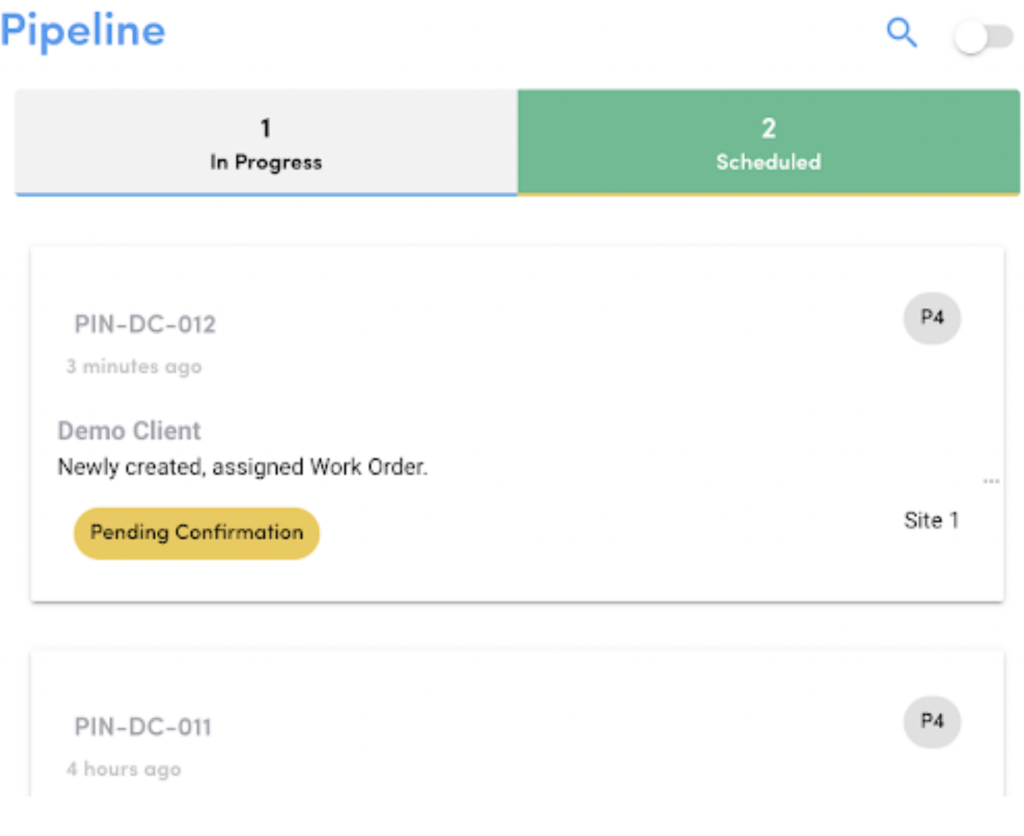
By clicking on a Scheduled Work Order, the Technician is now able to perform a series of actions pertaining the WO, as well as displaying key information on it.
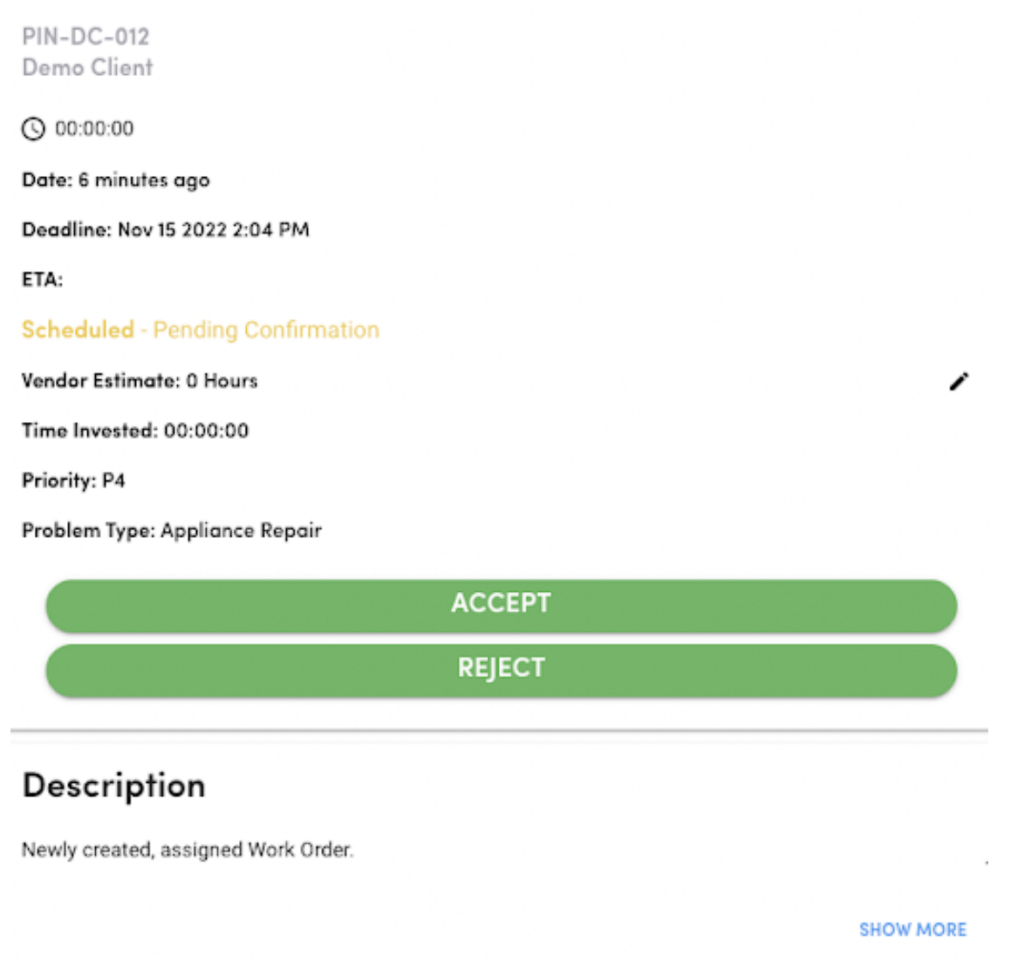
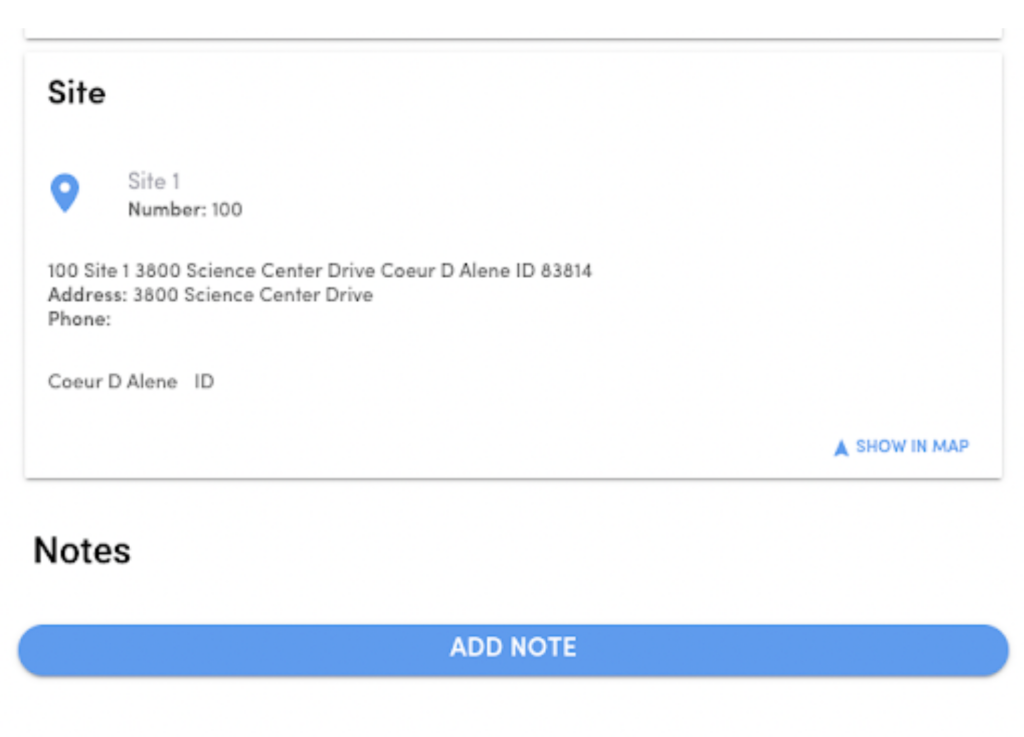
Such as the WO description, site information and the option to accept or reject.