Understanding Dropdowns When Creating an Asset in SWEVEN

Here is a description of the dropdowns used during asset creation and their related resources:
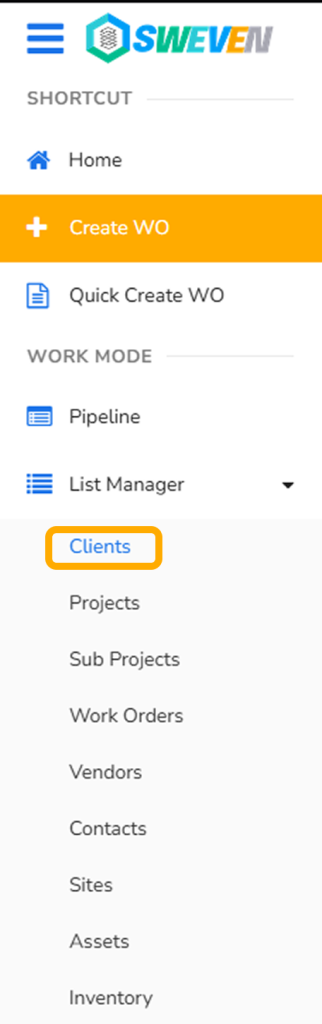
- Client
This dropdown lists all active clients in the system.
Go to List Manager → Clients
https://app.swevenbpm.com/ListManager/Clients
2. Site
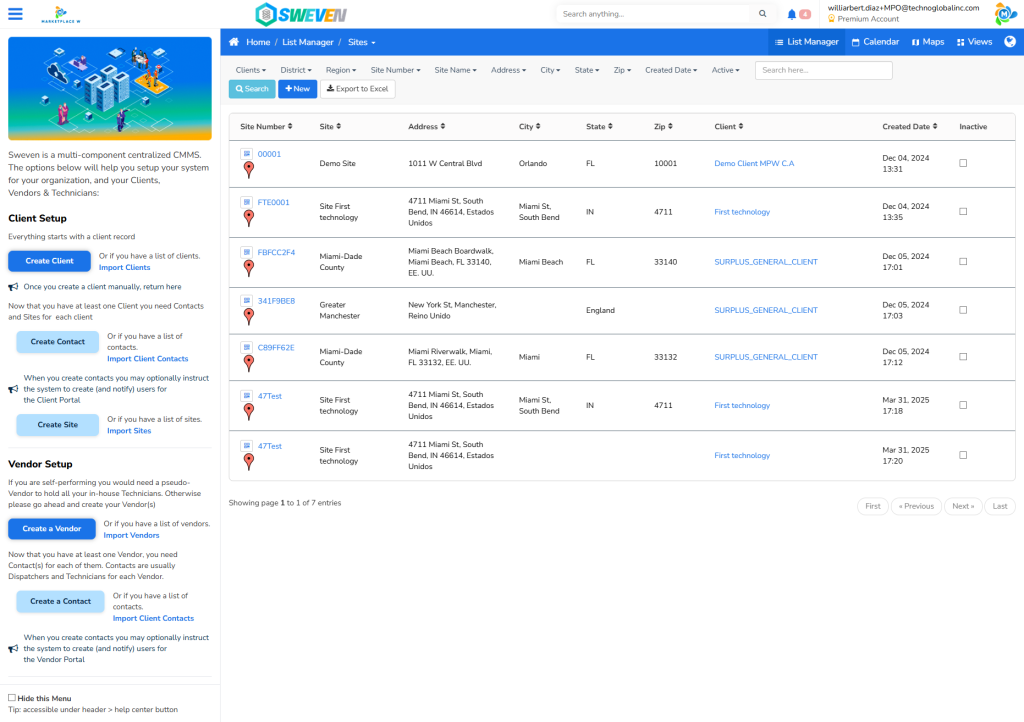
This dropdown lists all active sites belonging to the selected client.
Go to List Manager → Sites (filter by client)
https://app.swevenbpm.com/ListManager/Sites
3. Asset Type
This lists all active asset types. We’re currently using «SWEVEN IoT Device» for all sensor asset types.
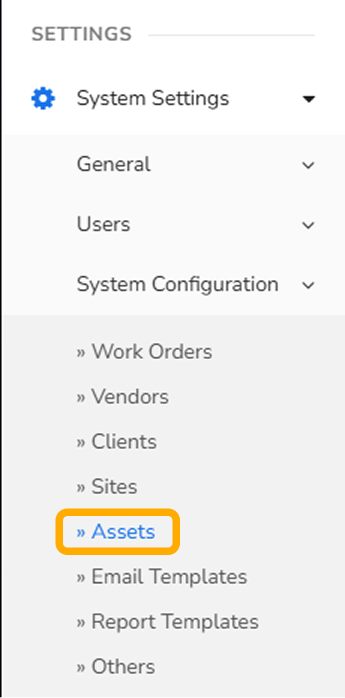
Go to Settings → System Configuration → Assets → Asset Types
https://app.swevenbpm.com/Settings/AssetTypes
4. Asset Model
This dropdown lists all active asset models, used primarily as tank models. There are two access routes:
Client-specific: Go to Client → Asset Models
https://app.swevenbpm.com/Client/6476/AssetsModels
General: Go to Settings → System Configuration → Assets → Asset Models
https://app.swevenbpm.com/Settings/AssetModel

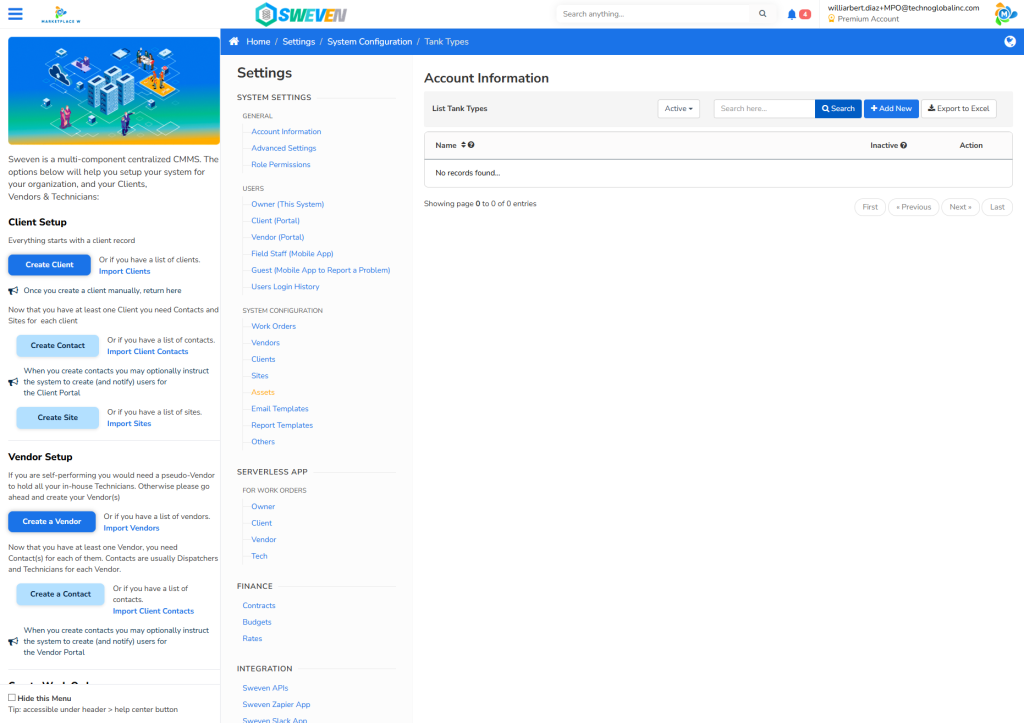
5. Tank Type
Lists all active tank types.
Go to Settings → System Configuration → Assets → Tank Types
https://app.swevenbpm.com/Settings/InstallationTypes
6. Status
Lists all asset statuses and sub-statuses used in the asset pipeline. This is a fully configurable feature:
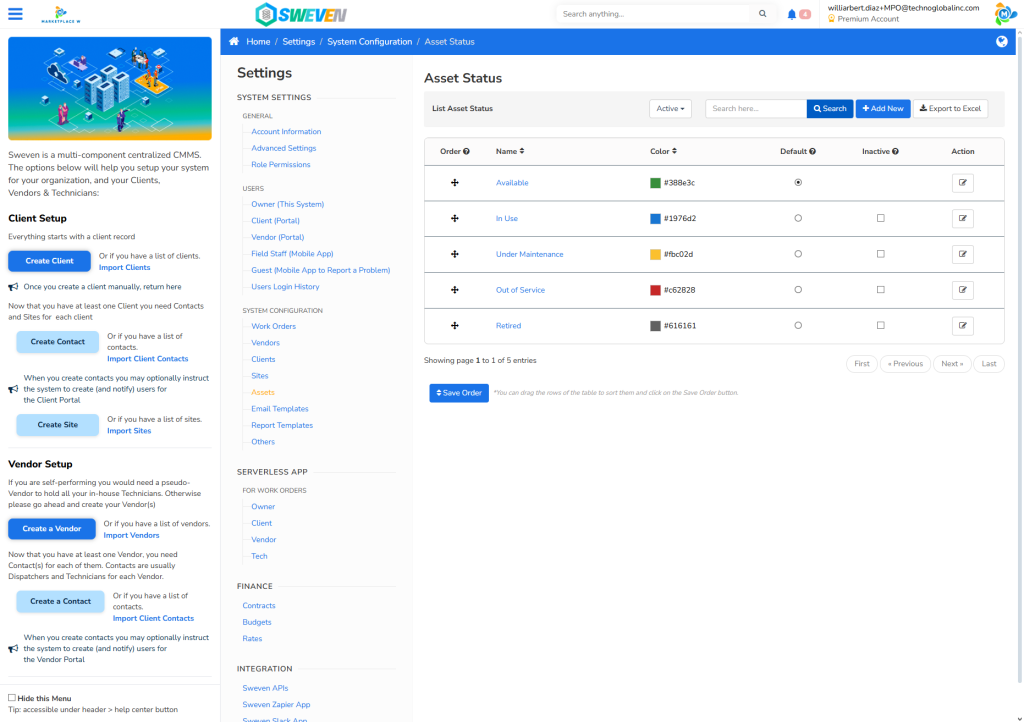
Status: Go to Settings → System Configuration → Assets → Asset Status
https://app.swevenbpm.com/Settings/AssetStatus
Sub-status: Go to Settings → System Configuration → Assets → Asset Sub Status
https://app.swevenbpm.com/Settings/AssetSubStatus