
Setting the hierarchy of client users for layered notifications.

Sweven has a tier system for Client Users to specify which type of user will be notified of new order creation and status changes and to keep a record of how your clients’ roles are set up. We call these Hierarchies.
Client users be assigned a Sweven account to monitor the tickets they have submitted for your attention, to communicate using notes in a Work Order, and be notified of changes in the status of the work.
Please refer to the Client Portal post for an introduction and the Client User creation for reference.
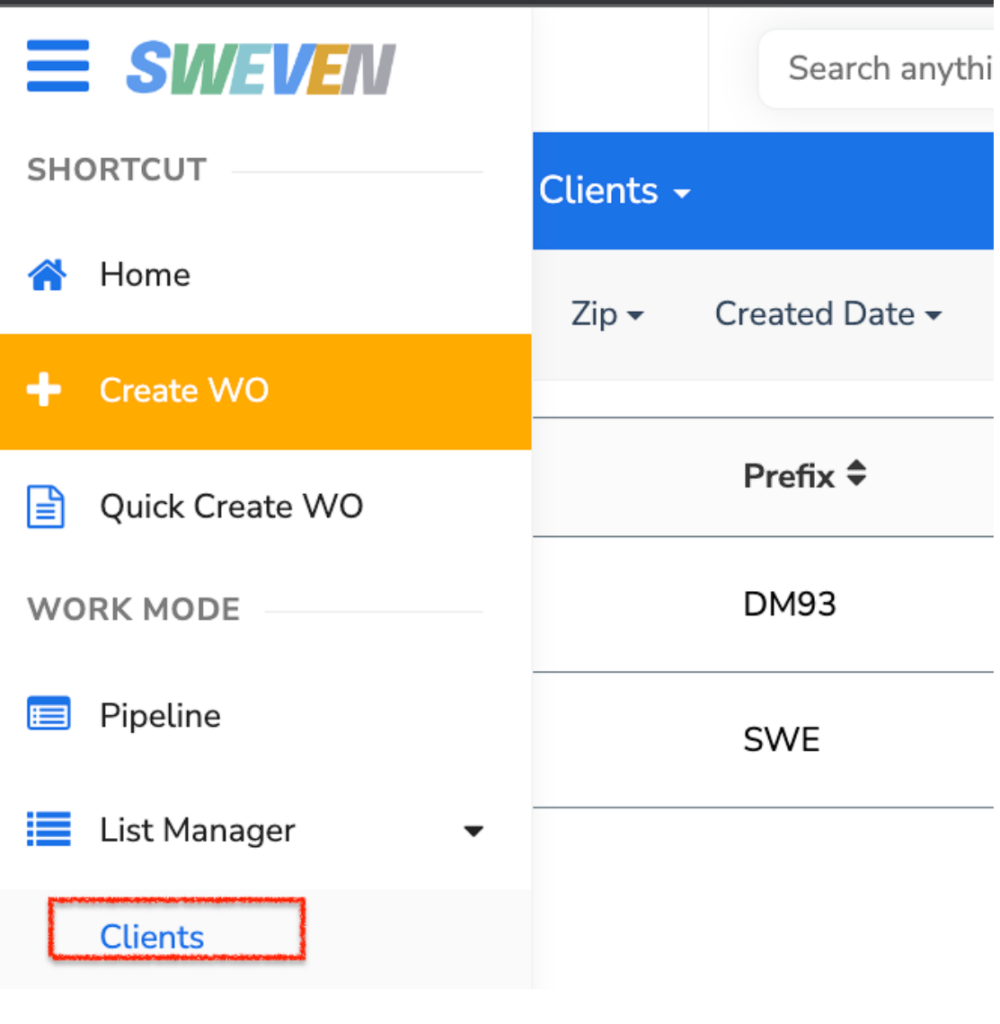
In order to access and edit the Client Hierarchies, go to the hamburger menu and then scroll down to «Clients»
Select a Client from the list and click on the «Hierarchy» tab for the selected client.
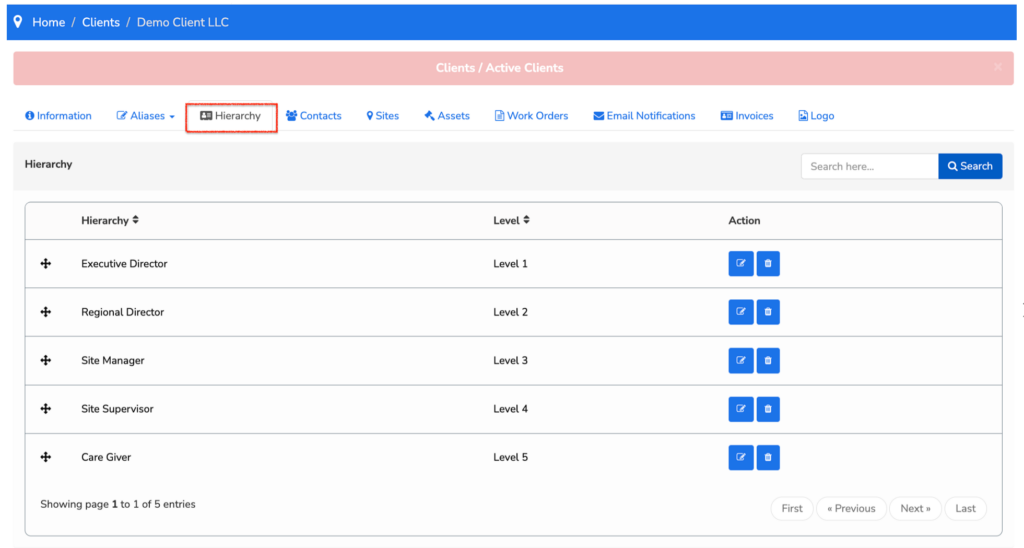
This list displays the default Hierarchy which you can edit in the pencil button.
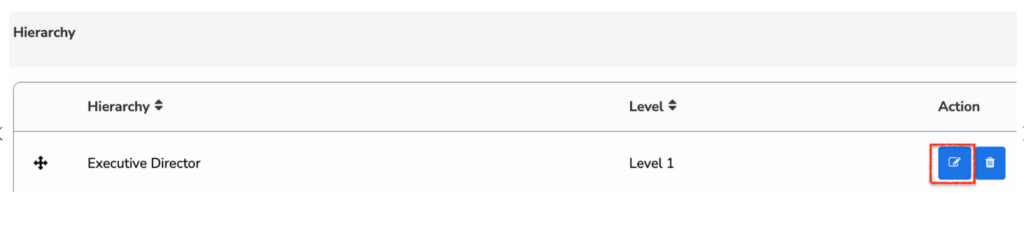
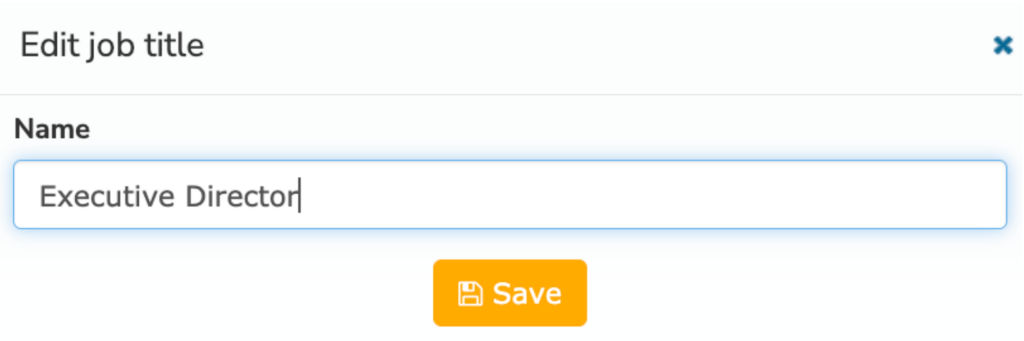
Here, you can update the name of this Hierarchy. If the highest hierarchy you need to manage in Sweven is Regional Manager, you can edit the Executive Director (Level 1) hierarchy and update it to Regional Manager for a clear way to refer to the user on the Client side for you and your team.
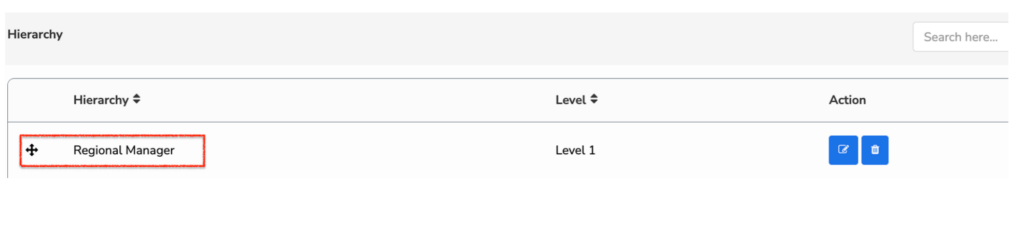
Having this hierarchy updated and in order, will help you keep better track of how things move on your Client side at any time and for them to be notified of status changes of the work provided.